Estate agent
Listing photos that grab attention from the very first thumbnail — without physical staging.
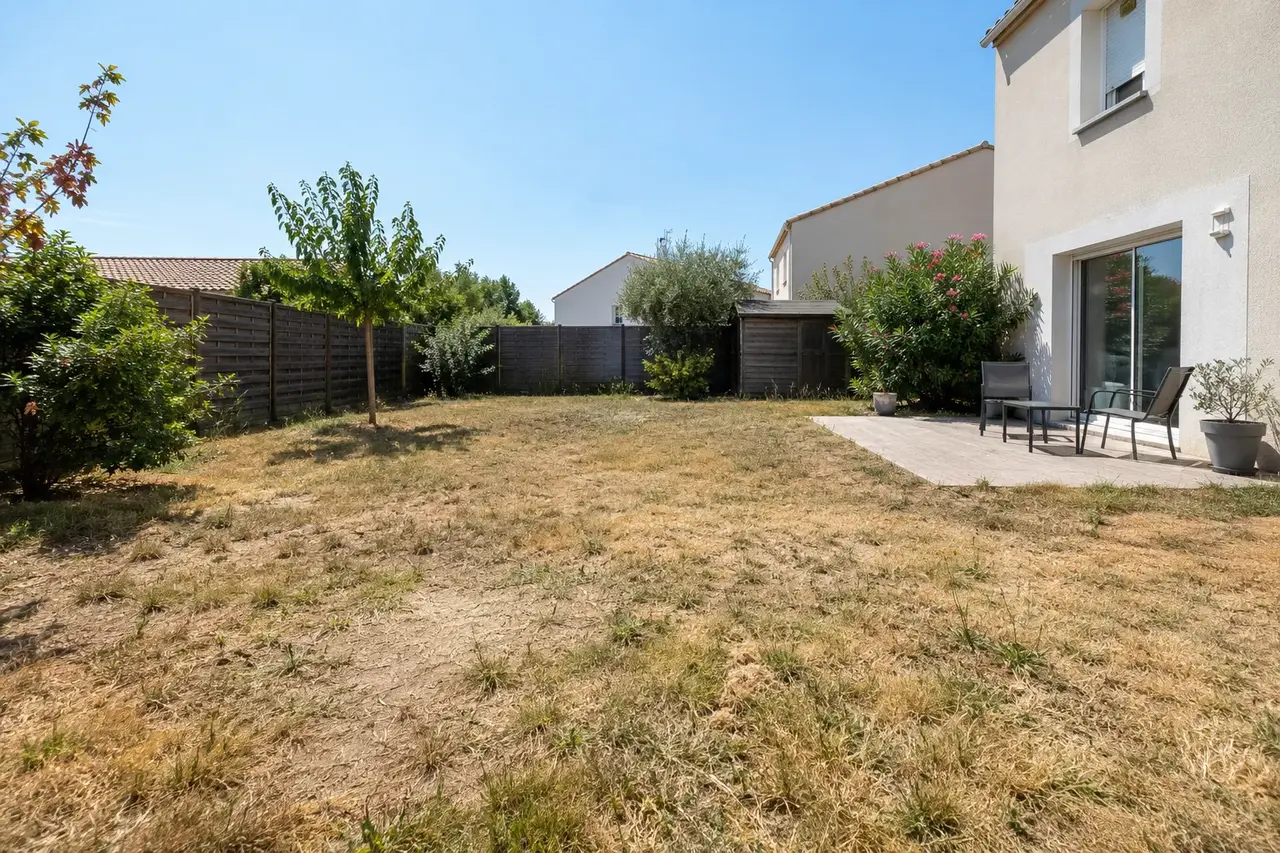
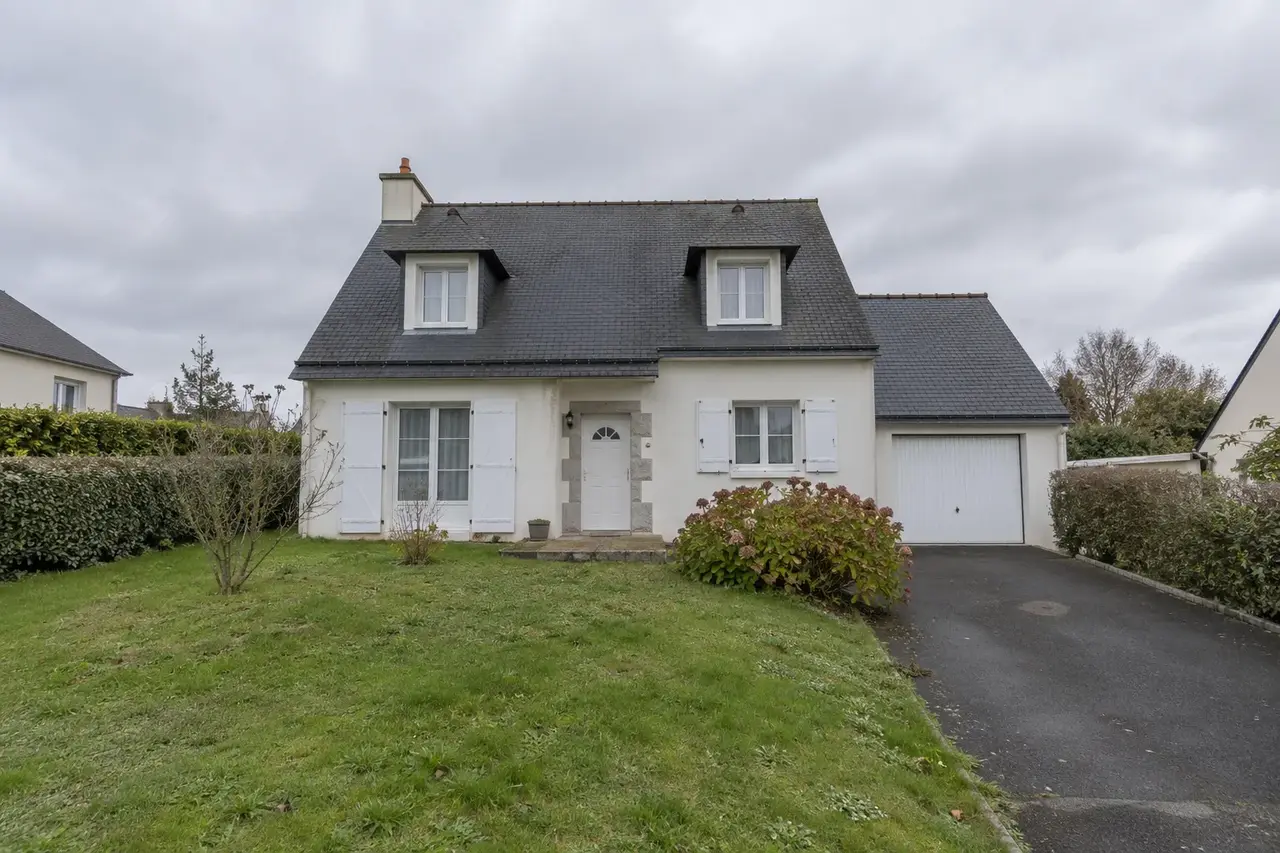
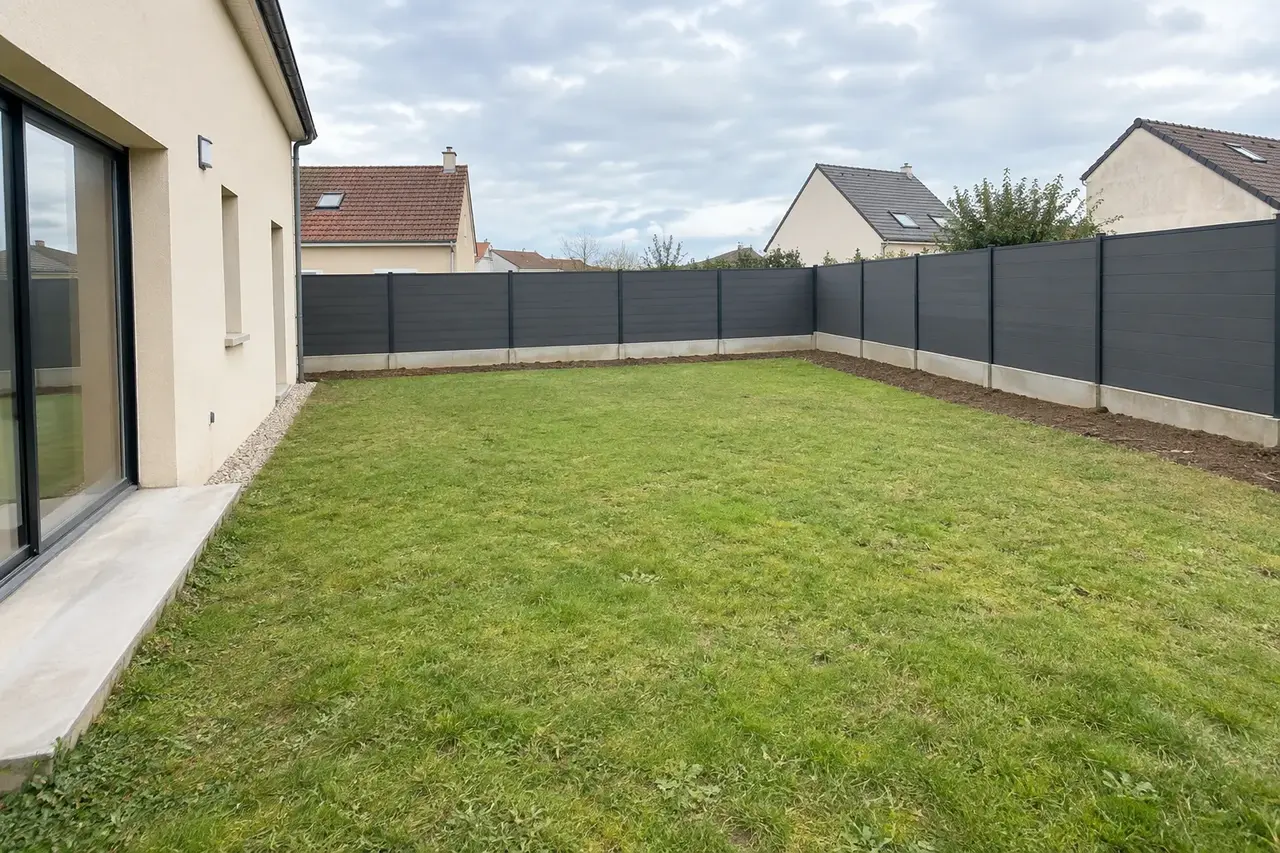
Adjust the season in your exterior photos to show the property at its best all year round.
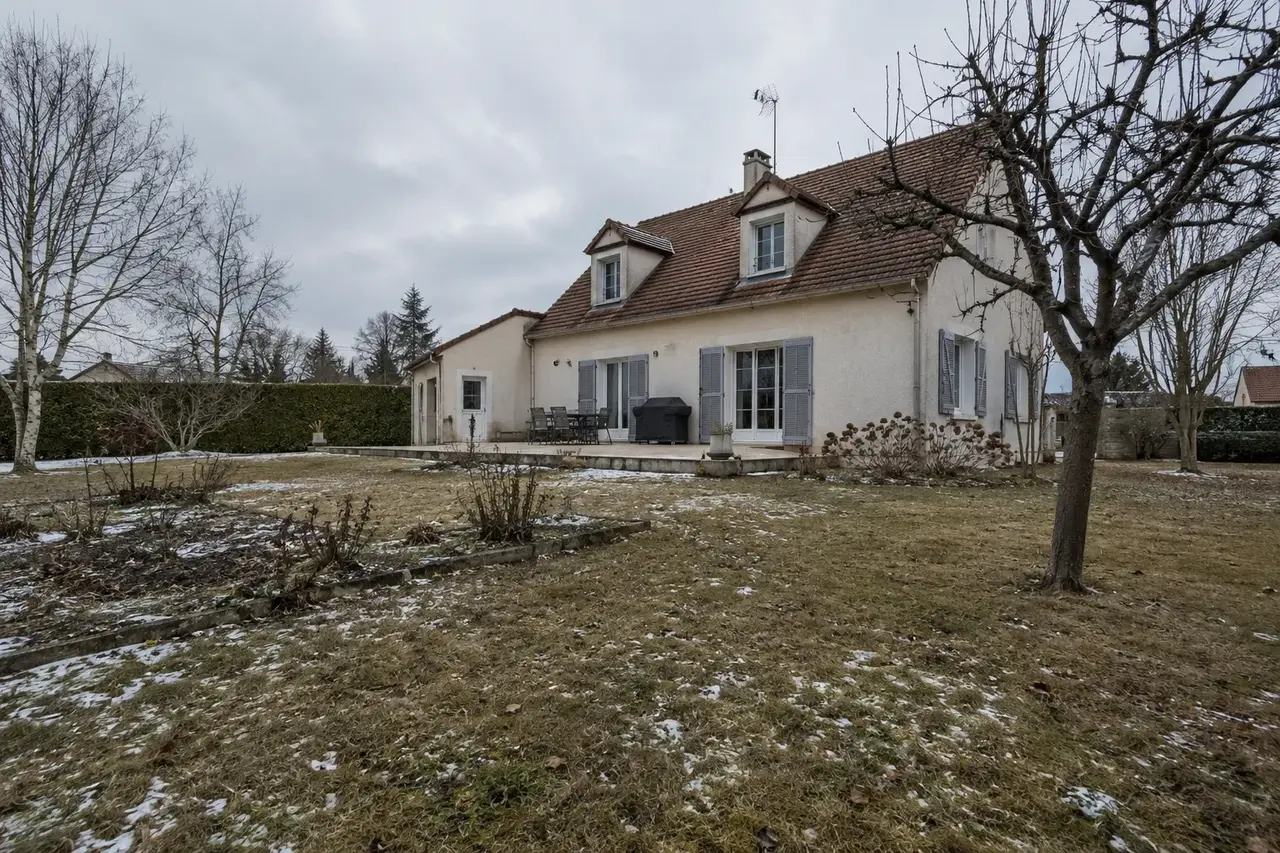
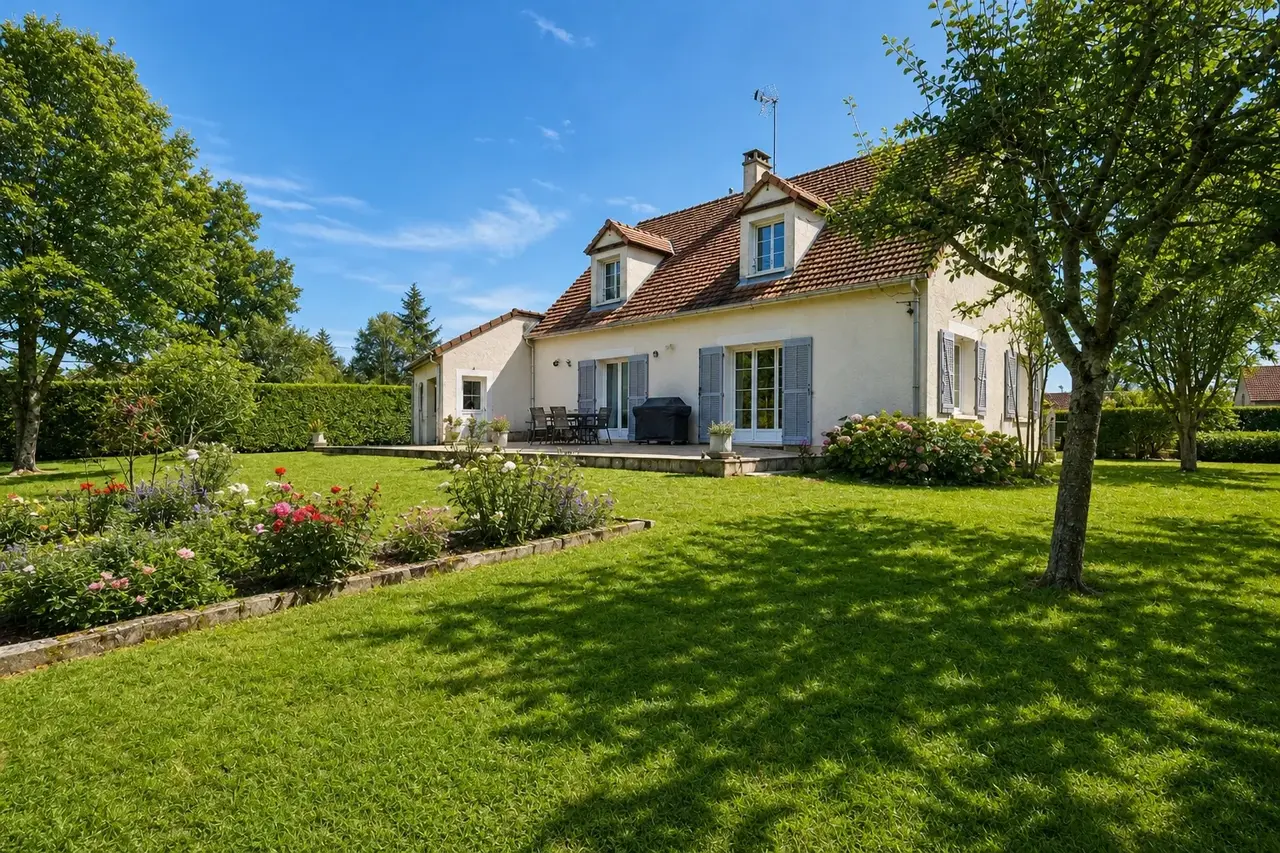
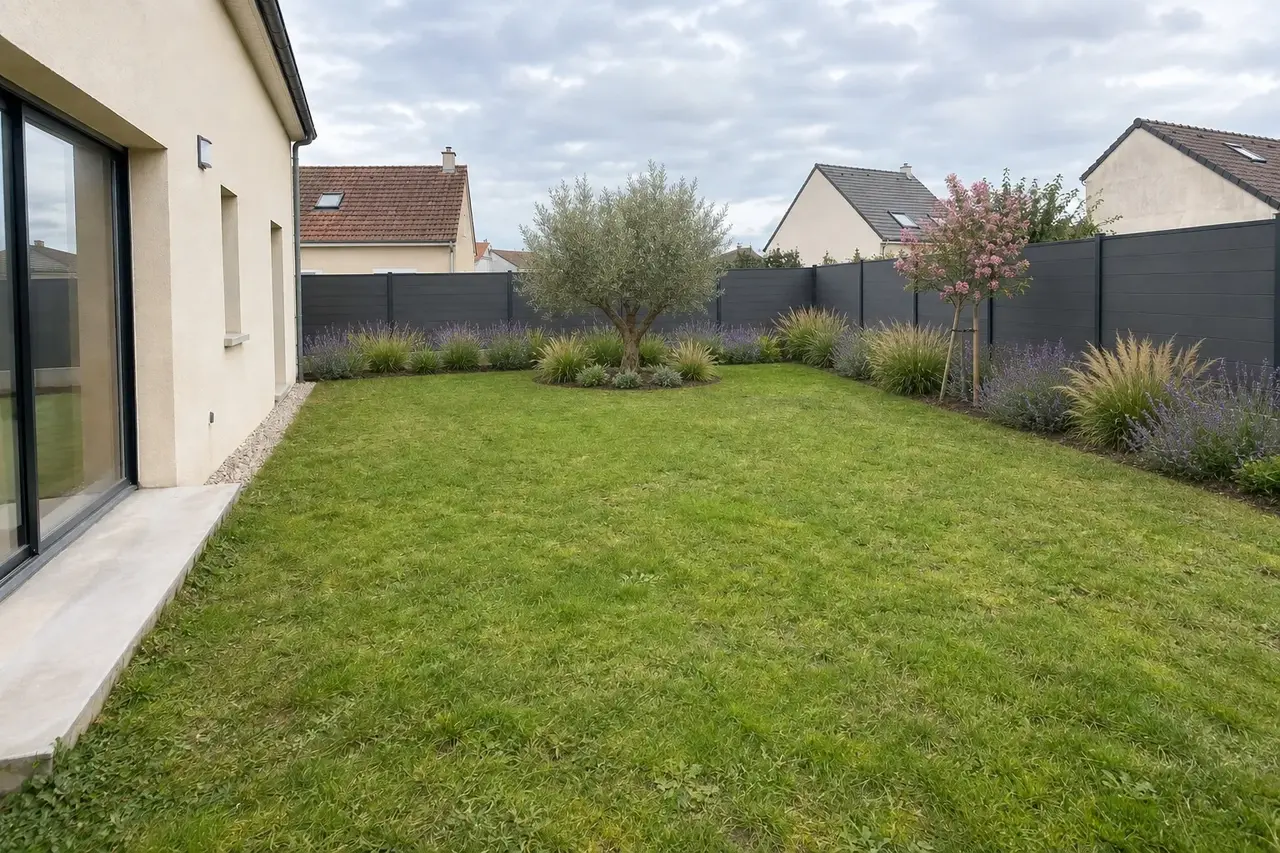
The exterior photographed out of season.
Vegetation, sky and light are assessed.
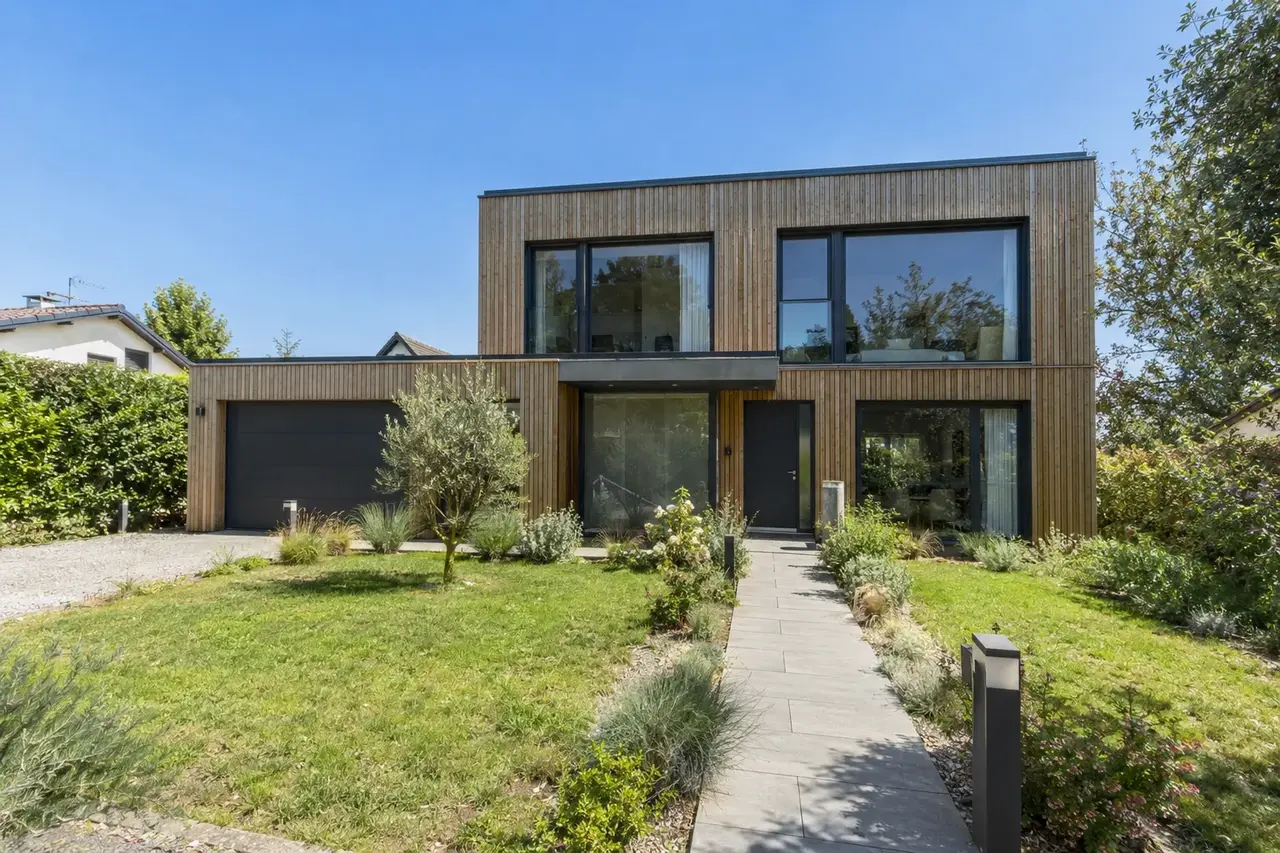
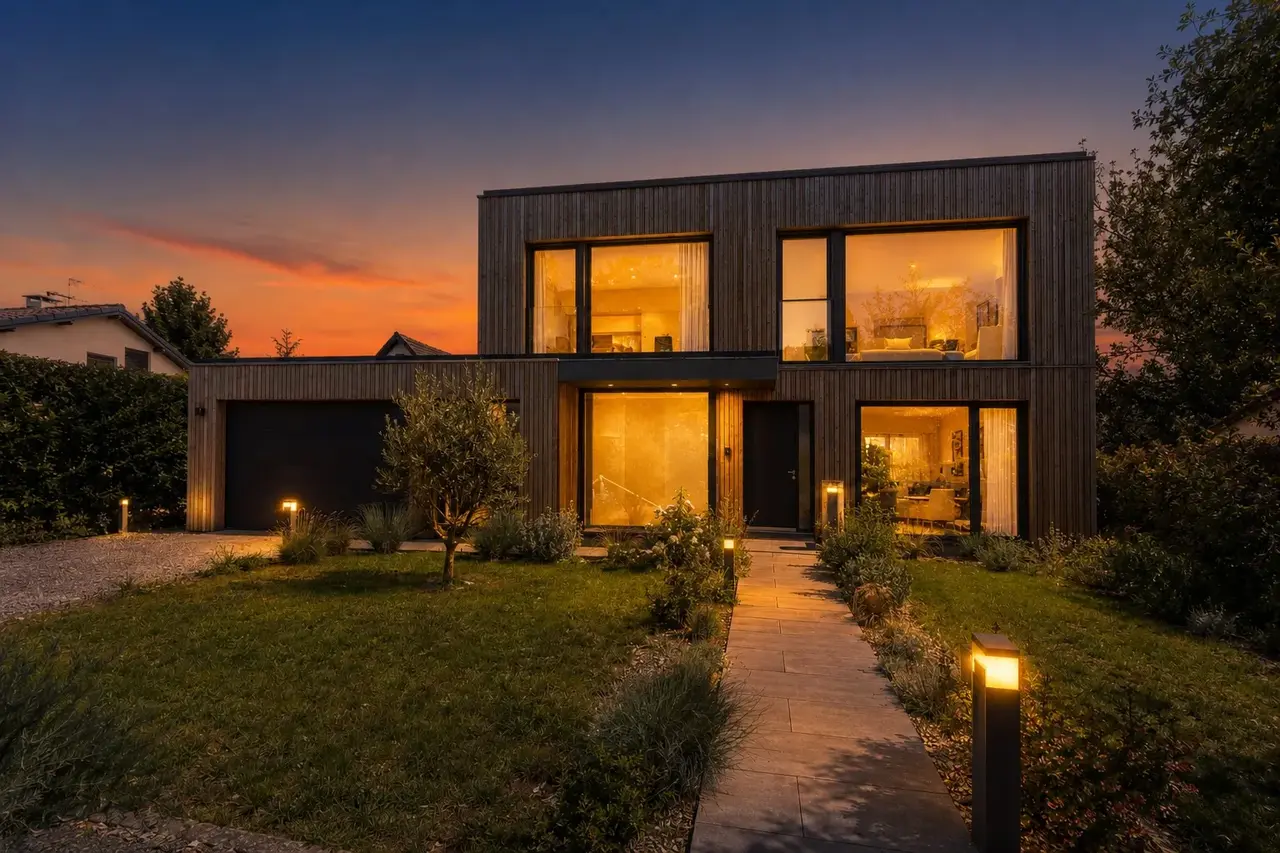
Vegetation and sky brought back to a fine season.
An exterior at its best.
Listing photos that grab attention from the very first thumbnail — without physical staging.
Show your home’s potential, without moving a single piece of furniture.
Present a credible intention and agree a direction with the client in minutes.
Picture the result after works before you buy or commit to spending.
The render follows what you write.
Start with a clear action verb.
“Furnish this living room…”, “Empty this room…”, “Repaint the walls…”
Name the style you want, or let the AI choose.
“…in a warm Scandinavian style” or “…in a style suited to the room”
Say what must NOT change.
“…without touching the walls, windows or floor”
Specify the placement and scale of the important elements.
“sofa facing the window, large rug under the table”
One request at a time, then refine.
“change the rug, keep everything else”
3 free credits when you sign up.
Both: winter to summer for a spring listing, or the other way round. The house and plot stay identical.
No. A photo and one sentence in English or French are enough — no software to install or learn.
Yes. The AI works on an empty, cluttered or already furnished room — it can declutter it first if needed.
A few minutes per photo — the app shows the progress. You can then refine with simple instructions.
Yes. By default, walls, windows, floor and volumes stay intact — the AI does not reinvent the space.
Yes. You iterate through successive instructions (“change the rug, keep the rest”) until you get the render you want.
Yes, in HD. For listings, add the label “virtually staged photo”, as is customary.
Yes. Your renders are yours and can be reused freely. Hosted in France, GDPR-compliant.
3 free credits when you sign up. Move to a monthly plan when you need one.
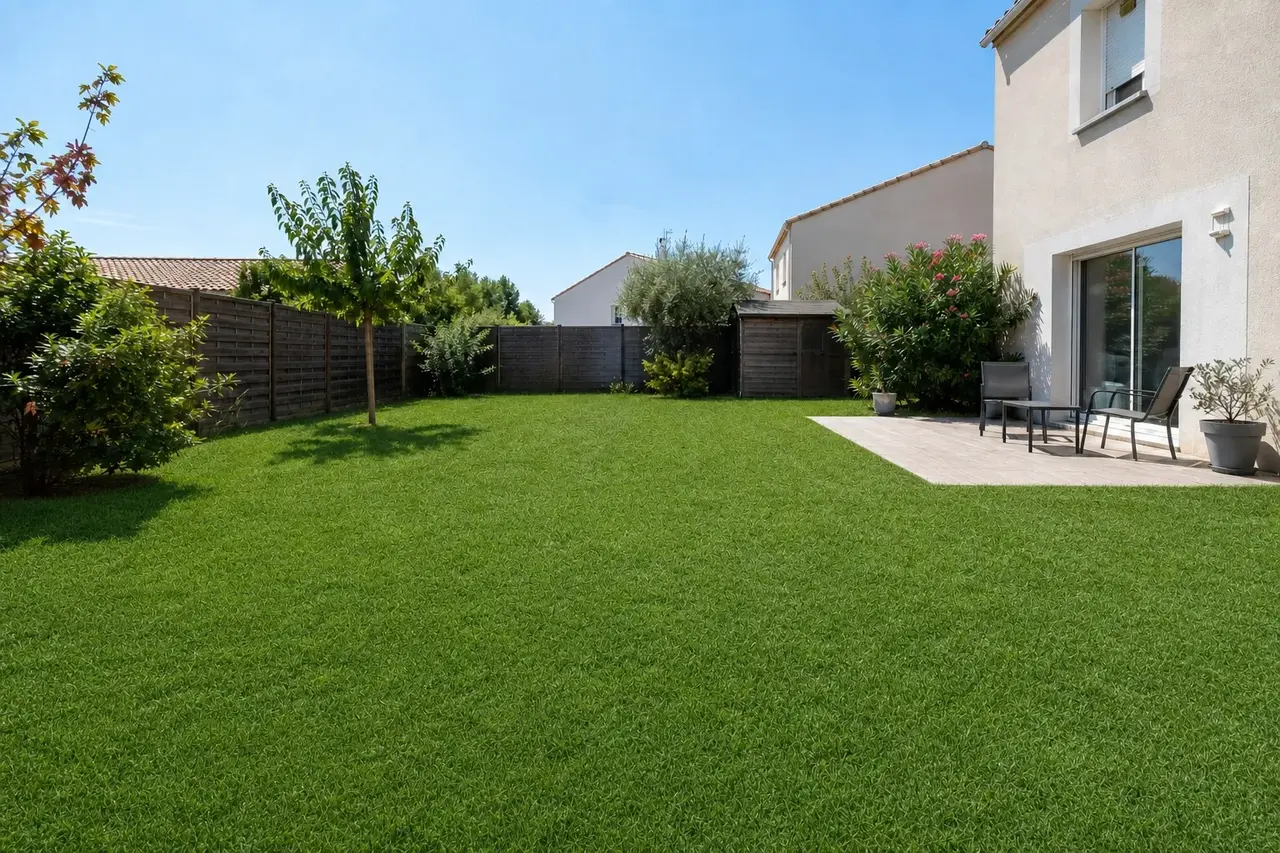
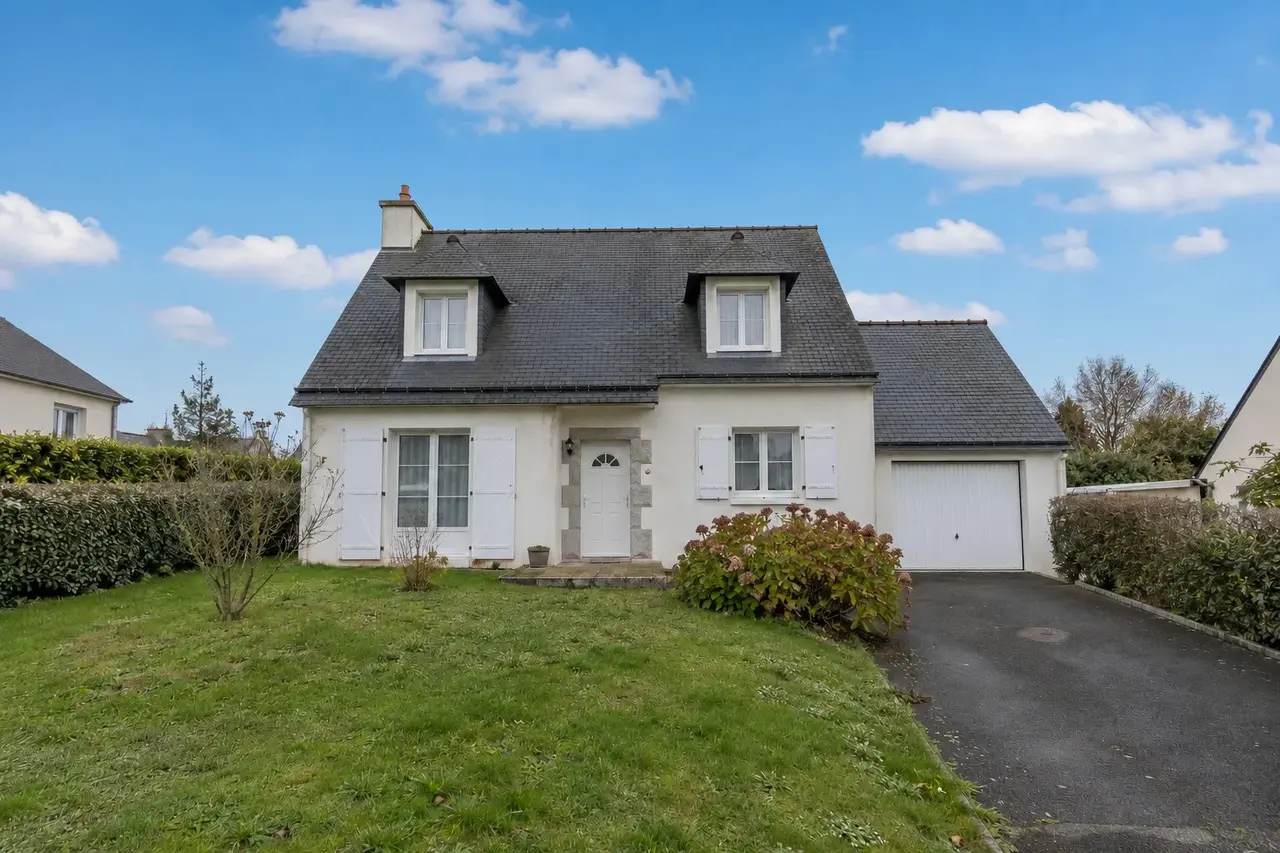
Upload a photo of an empty room and see its potential. Get 3 free credits when you sign up. The cost varies by operation. Free renders have a watermark; new renders after a purchase have none.